✦ Stafferin + Claude

Run your schedule from a chat window.

Connect Claude to your own Stafferin account and ask for what you need in plain English — who’s on tonight, where the gaps are, a new night guard at Maple on Friday, Priya moved to the Tuesday shift, the week published. No exports, no API keys, no new app to learn.

⏱️ About 5 minutes to set up 🔑 No API key to copy 🏢 Answers only about your own data ✍️ Schedule changes are opt-in

First, what this is

Claude talks to your Stafferin. Nothing else changes.

Stafferin publishes a secure endpoint that Claude can connect to. When you ask a question, Claude calls that endpoint, Stafferin answers from your live data, and Claude writes the answer back to you in the chat. Your roster stays in Stafferin. Your Stafferin login is what authorises the connection, and you can cut it off at any time.

💬 It uses your own Claude plan

Stafferin never calls Anthropic and there is no per-question bill from us. You are simply using Claude, with your company’s data available to it.

👤 It sees what you can see

The connection is tied to your personal Stafferin account. An administrator gets the whole organisation; a guard gets their own shifts and their own reports. Claude cannot widen that.

👀 Reading is on. Changing is not.

Out of the box Claude can read your schedule, attendance, leave, incidents and reports. Creating and changing shifts is a separate switch your administrator turns on deliberately.

🔒 Some things are never writable

Payroll, billing, employee records, HR files and incident reports are read-only, always — there is no switch that makes them otherwise.

Step 0

Before you start

Setup

Connect Claude to Stafferin

Four steps, once. After this it stays connected.

1

Sign in to Stafferin — and check which company you’re in

Go to app.stafferin.com and sign in. If your account covers more than one company, use the organisation switcher to land on the one you want to demonstrate. Leave this tab open.

2

In Claude, add a custom connector

Open Settings → Connectors in Claude and choose Add custom connector. Give it a name — Stafferin — and paste this URL:
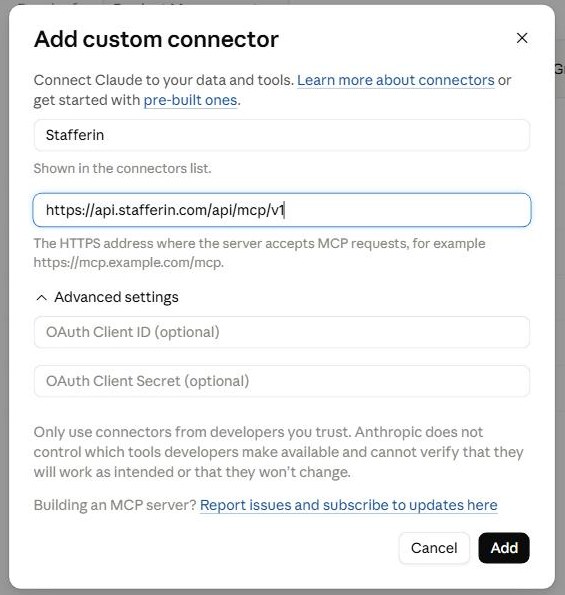
Connector URL https://api.stafferin.com/api/mcp/v1
Claude's Add custom connector dialog, with the name Stafferin and the connector URL filled in
What it looks like. Name and URL are the only two fields you need. OAuth Client ID and Secret sit under Advanced settings and stay empty — Stafferin does not use them.
🛑
Type it exactly. Only two addresses answer: the one above, and the short alias https://api.stafferin.com/mcp. Anything else — app. instead of api., or dropping the /v1 — returns “not found”, which looks exactly like the connector being broken. There is nothing else to fill in: no client ID, no secret, no API key.
3

Click Connect, then approve

Claude sends you to Stafferin to sign in. You will then see an approval screen that names the company you are connecting — “Claude is asking to read data from”, your organisation’s name, and its organisation number. Check that name is the right one, then press Allow access.
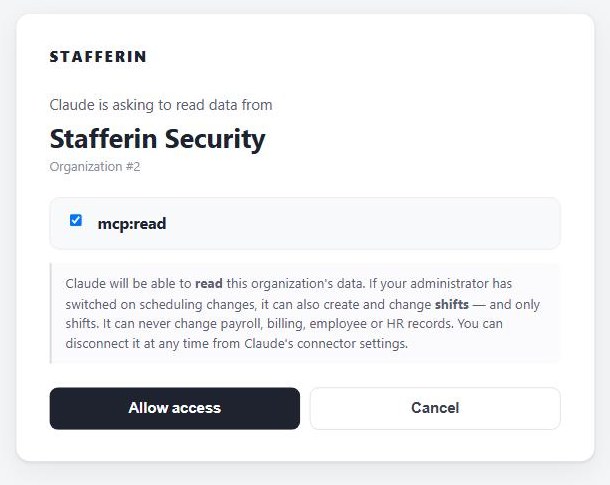
The Stafferin approval screen naming the organisation Stafferin Security, Organization number 2
The approval screen. It names the organisation and its number, and states exactly what Claude will be able to do. Check that name before pressing Allow access.
💡
The screen names the organisation on purpose. If it shows a company you did not expect, press Cancel — do not approve and sort it out afterwards. Switch organisation in Stafferin first, then start again.
4

Prove it works

Back in a Claude chat, ask for something small and verifiable:
List my Stafferin sites.
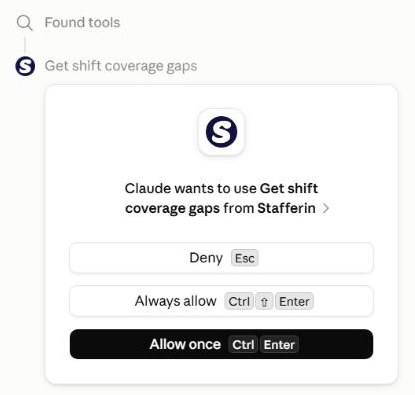
Claude asking permission to use the Get shift coverage gaps tool from Stafferin
The first time Claude uses each tool it asks. Choose Allow once to approve a single call, or Always allow to stop being asked for that one tool. You can withdraw either at any time.

You should get your real site list. If Claude says it has no such tool, see Troubleshooting — it is almost always a stale connection, and reconnecting fixes it.
Optional · administrators

Let Claude change the schedule

Reading works the moment you connect. Creating shifts, assigning people, approving swaps and publishing are held behind a second switch, so that what an AI may see and what an AI may change stay two separate decisions.

1

Turn on scheduling changes for your organisation

In Stafferin, open Feature Settings and enable Scheduling changes via the AI connector (mcp.scheduling.write). It is off by default for every company.

2

Wait a minute, then reconnect

Feature changes take up to 60 seconds to take effect. After that, disconnect and reconnect the Stafferin connector in Claude — Claude captures the list of things it can do at the moment it connects, so a session started before you flipped the switch will keep insisting it cannot create shifts.

3

Check who is allowed

Even with the switch on, only admins and managers with schedule rights can make changes — exactly the people who can already edit the board by hand. Everyone else keeps read access and is politely refused if they ask for a change.

⚠️
Doing a demo? Reconnect first. Reconnecting the connector is also what refreshes the tool list after any Stafferin update. If something worked last week and “doesn’t exist” today, reconnect before you conclude anything is broken.

A guided run

Your first five minutes

A short conversation that shows the whole loop: look at the week, find the hole, fill it, put somebody on it, publish. Type these one at a time and read what comes back — each answer feeds the next.

1 · Get your bearings

Give me a summary of this week’s schedule.
What comes backShift counts for the week, broken down by site, with how many are filled and how many are still open.

2 · Find what’s wrong

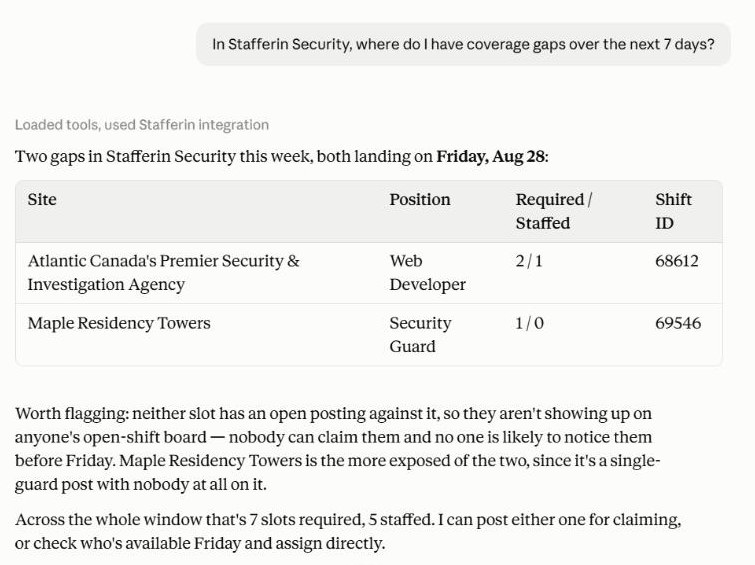
Where do I have coverage gaps over the next seven days?
What comes backThe shifts that nobody is on, with the site, the date and the hours. This is the question most schedulers open the board to answer, and it is the strongest thing to lead a demo with.
Claude answering a coverage gaps question with a table of two uncovered shifts
A real answer, from live data. Claude reads the gaps, lays them out as a table with the shift IDs it will need next, and points out that neither slot has been posted for claiming.

3 · Create the shift you’re missing

I need a night guard at Maple Plaza this Friday, 10pm to 6am.
What comes backClaude looks up the site and the position itself, creates the shift, and tells you the new shift’s ID so you can act on it in the next sentence. Nothing is sent to anybody yet.

4 · Put somebody on it

Who’s available and qualified for that one?
Assign Priya to it.
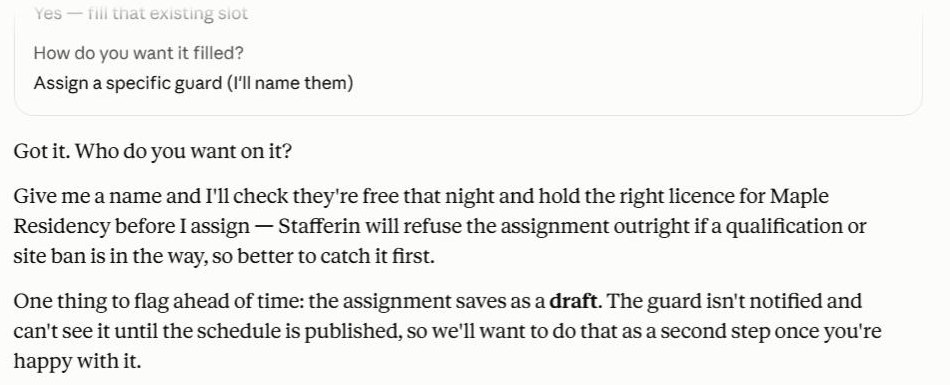
What comes backThe assignment is created unpublished. Priya’s phone stays quiet — see the guardrails for why that is deliberate.
Claude explaining that the assignment saves as a draft and the guard is not notified until publishing
It tells you what it is about to do. Claude checks qualifications and site bans before assigning, and says plainly that the assignment saves as a draft — nobody is notified until you publish.

5 · Fix the mistake you just made

This is worth showing, because it is what really happens:

Actually scrap that — wrong night. Remove it.
What comes backIf somebody is already on the shift, Claude refuses and tells you to cancel the assignment first. That refusal is the feature.

6 · Send it out

Publish the current schedule cycle for Maple Plaza.
What comes backConfirmation of what was published, and a plain statement that everyone rostered has now been emailed and notified on their phone. Everything you did before this step was a silent draft.
🎤
Demo tip. The moment that lands hardest is step 5, not step 3. Anyone can believe a computer created a shift. Watching it refuse to delete a shift somebody is already booked on is what makes a roomful of schedulers trust it.

Under the hood, briefly

How one sentence becomes one change

You never type an ID. Claude looks things up in order, and each lookup narrows the next — which is also why it can tell you exactly what it is about to do before it does it.

“night guard at Maple, Friday 10pm–6am” → find the site → find the position → create the shift → “created — ID 4127”

Two consequences worth knowing:

The cookbook

What to type

You do not need any of these word for word — ask however you normally would. They are here to show the ground the connector covers. Read works as soon as you connect; Changes needs the scheduling switch; Admin is limited to administrators.

Read Who’s working
Who is on shift tonight?
Show me tomorrow’s roster for the Riverside site.
Summarise next week’s schedule by site.
What is Priya working this week?
Run a roster compliance check for next week.
Read Holes, availability and who could fill them
Where are my coverage gaps for the next 7 days?
Which shifts are still unfilled at Maple Plaza this month?
Who is available on Saturday night?
Show me anyone whose qualifications have already expired.
Whose licences or certificates expire in the next 60 days?
Changes Creating shifts

Say it the way you would say it to a person. Claude fills in the site, the position and the pattern.

I need a night guard at Maple Plaza this Friday, 10pm to 6am.
Add two day guards at Riverside every weekday next month, 7am to 3pm.
Create weekend patrol cover at the depot for the next three weekends.
Scrap the Friday night one at Maple — wrong night.
🌙
An overnight shift is stored as two halves, and Claude always handles both together — deleting a 10pm–6am shift never leaves a stray 10pm–midnight stub behind still reading as real demand.
Changes Assigning, moving and cancelling
Assign Priya to the Friday night shift at Maple.
Move Daniel’s Tuesday shift to Wednesday, same hours.
Cancel Priya’s Saturday assignment — she called in.
Check Priya is actually qualified for that post before you assign her.
Changes Open shifts, swaps and publishing
Post the uncovered Saturday night shift as an open shift.
Who has claimed open shifts that still need approving?
Approve the claim on the Saturday night shift.
Are there any pending shift swap requests?
Approve the swap between Daniel and Priya.
Publish the current schedule cycle for Maple Plaza.
📣
These are the actions that contact people. Publishing emails and pushes everyone rostered; posting an open shift notifies everyone eligible to claim it. Creating and assigning stay silent — see what reaches your staff.
Read Attendance and timesheets
Who was late or missed a clock-in yesterday?
Show me last night’s clock records.
Give me Priya’s timesheet for last week.
Any attendance exceptions I should look at before I approve this period?
Read Leave and time off
Who has time off booked next month?
Are there time-off requests waiting on me?
What is Daniel’s remaining leave balance?
Does anyone booked on next week’s roster have approved leave that clashes?
Read Incidents, safety and site operations
Show me the incident reports from the last 14 days.
Any man-down or SOS alerts this month?
What’s in the recent pass-down notes?
List our patrol tours.
Which visitors were signed in this week?
Read Sites, clients and the details behind them
List my sites.
Tell me everything about the Maple Plaza site.
Who are my clients and how many sites does each one have?
Show me the site areas and contacts for Riverside.
Read People, compliance and equipment
Find me guards with a first aid certificate.
Show me Priya’s profile.
Which uniform issues are still waiting on approval?
List our fleet vehicles, then show me vehicle patrol activity this month.
List our active parking permits.
Are there any outstanding tasks or form submissions?
Show me the latest announcements.
Admin Payroll and billing Read only, always

These answer only for administrators, and they can never be changed through Claude — no switch turns that on.

Summarise payroll for the last pay period.
Show me this month’s client invoices.
Show me roster compliance for last week.
What are my organisation’s break rules?

Trust

The guardrails

These are not settings and they are not advisory. They are enforced by Stafferin on every single request, whatever Claude was asked to do.

📣
Exactly three things reach your staff. Everything else is silent.
  • Publishing a schedule — everyone rostered is emailed and gets a push notification.
  • Posting an open shift — eligible staff are emailed and pushed so they can claim it.
  • Moving a shift that was already published — the person is told about the new date, because they had already been told about the old one. Claude says so in its answer when this happens.
Creating shifts, assigning people, cancelling and deleting are all silent. If you are demonstrating this to a room, that distinction is worth stating out loud before you start.
RuleWhat it means in practice
Nothing is published as a side effect Every shift and assignment Claude creates is written unpublished and silent. There is no “publish” option on assigning or creating — a half-finished plan cannot reach anybody’s phone. See exactly what does contact your staff.
Nothing reaches into the past Claude cannot create, move, cancel or delete anything dated before today, measured in your organisation’s timezone rather than the server’s.
A booked shift is never deleted Ask to remove a shift somebody is assigned to and Claude refuses, saying how many people are on it. Cancel the assignment first — deliberately two steps.
Overnight shifts move as one Both halves of a night shift are handled together, so you can never end up with an orphaned stub still counting as unfilled demand.
There is a ceiling on any one request A single request can touch at most 40 rows, and there is a daily limit on total changes. A misunderstood sentence cannot rewrite a month.
Every attempt is recorded Applied, refused or failed — each one writes an audit record naming the person, the action, what was targeted, and the before and after. A change that could not be attributed to a named person does not happen at all.
Changes are per person, never per company key An organisation-level API key may read, but may never write, because a key names a company rather than a human — and an unattributable change is not an acceptable one.
Only scheduling is ever writable Payroll, billing, invoices, employee records, HR files and incident reports are read-only through this connector with no exception and no setting.
One switch stops everything Stafferin operates a platform-wide kill switch for AI-driven changes, independent of your own setting — usable in seconds, with no deployment.

If you work across companies

More than one organisation

Some people hold accounts in several companies. If that is you:

In Admiral Security, who’s on shift tonight?

If something looks wrong

Troubleshooting

What you seeWhat it is
“I don’t have a tool that does that” — for something you know exists A stale connection. Claude captured the list of available actions when it connected. Disconnect and reconnect the Stafferin connector. This is by far the most common cause, especially right after a Stafferin update or after enabling scheduling changes.
Claude reports the connector is not found The URL. It must be https://api.stafferin.com/api/mcp/v1. app. instead of api., or a missing /v1, both give a 404 that reads like a broken tool.
The approval screen shows a blank page or asks you to sign in No Stafferin session in that browser. Open app.stafferin.com, sign in, and start the connection again from Claude.
The approval screen names the wrong company Press Cancel. Switch organisation inside Stafferin, then reconnect. Never approve a screen naming a company you did not intend.
Answers are correct-looking but empty Usually the right answer about the wrong company — check which organisation you connected as. Ask Claude “which organisation are you answering for?” and compare it to the name on the approval screen.
It worked yesterday and everything fails today Reconnect. A Stafferin deployment can require a one-time re-approval; reconnecting takes a few seconds and restores it.
Claude refuses a change you are sure you’re allowed to make Check three things in order: the scheduling switch is on for your organisation, you hold admin or manager schedule rights, and the date is not in the past.
A note appears at the end of an answer saying the connector has been updated That is Stafferin reporting its own status, not an instruction. The answer above it is unaffected. Reconnect when convenient to pick up the newer capabilities.

Staying in control

Seeing who has connected — and cutting it off

🙋 By the person

Anyone can disconnect Stafferin at any moment from Claude’s own connector settings. Access ends immediately.

🛡️ By an administrator

An administrator can list who in the organisation has connected Claude, and revoke any one of them. Because a grant belongs to a person, revoking also tells you whether it affected their access at other companies rather than hiding that.

🚪 By employment

Access is re-checked against live employment on every request. Deactivate someone in Stafferin and their connector stops answering — no separate step to remember.

🔻 By switching it off

Turning off the scheduling switch stops all AI-driven changes for your organisation at once, while leaving read access intact.

🧰
Administrator visibility and revocation are available through the Stafferin API today (/mcp-connections); a screen for it in the product is on the way. Ask your Stafferin contact if you need it before then.