- This page — automated sync. Stafferin talks to ADP's API. Approvals flow through by themselves.
- Manual CSV export — you download a file each pay period and import it into ADP yourself. No certificate needed.
Before you start
✅ Stafferin Admin account
Managers can open this page but every button on it will be refused. Sign in as an Admin before you begin.
✅ ADP API credentials
A Client ID and Client Secret issued for your company from the ADP Developer Portal.
🔐 An ADP-issued certificate
ADP requires mutual TLS. You need the certificate and its private key. Without it, nothing else on this page will work — this is the step people get stuck on.
⚠️ ADP has no sandbox
Testing runs against your live ADP account. Treat the first sync as a test: check one employee before you trust a whole pay period.
What you'll do
- Open the ADP integration page
- Get your bearings on the dashboard
- Enter your API credentials
- Upload the ADP certificate
- Test the connection
- Map your employees to ADP
- Turn it on and watch the first sync
Reference
- Every setting, explained — including what Sync Mode really does
- Exactly what Stafferin sends to ADP
- Sync statuses, retries and limits
Step-by-step
Open the ADP integration page
In Stafferin, go to Integrations from the left menu. Find the ADP card and click Configure.
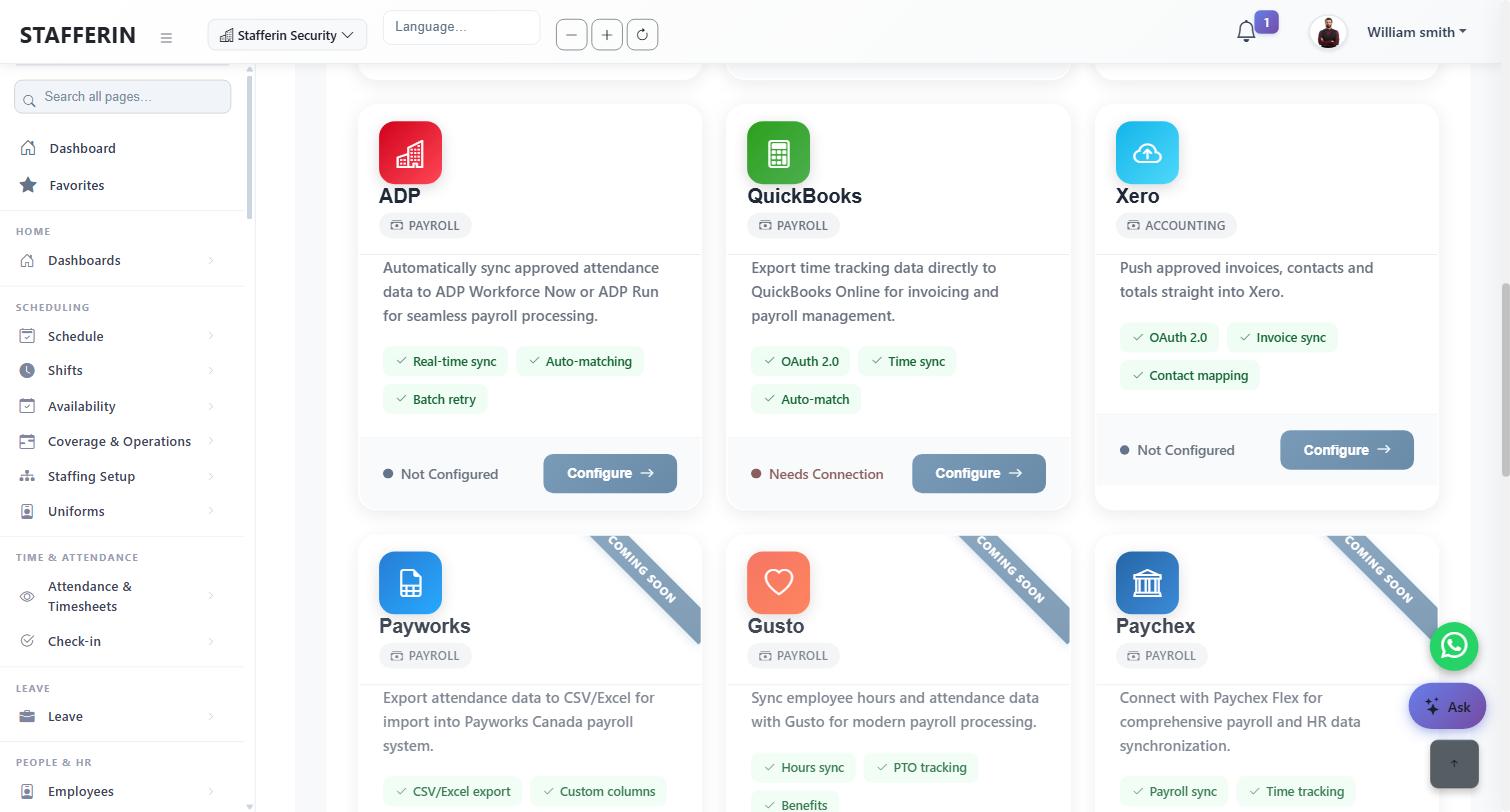
The status pill under each card is live. ADP reads Not Configured until you finish this guide, then Connected. You can also reach the page directly at app.stafferin.com/integrations/adp.
Get your bearings on the dashboard
Everything for ADP lives on this one page. The six tiles across the top are your health check, and the three tabs below them are the whole workflow.
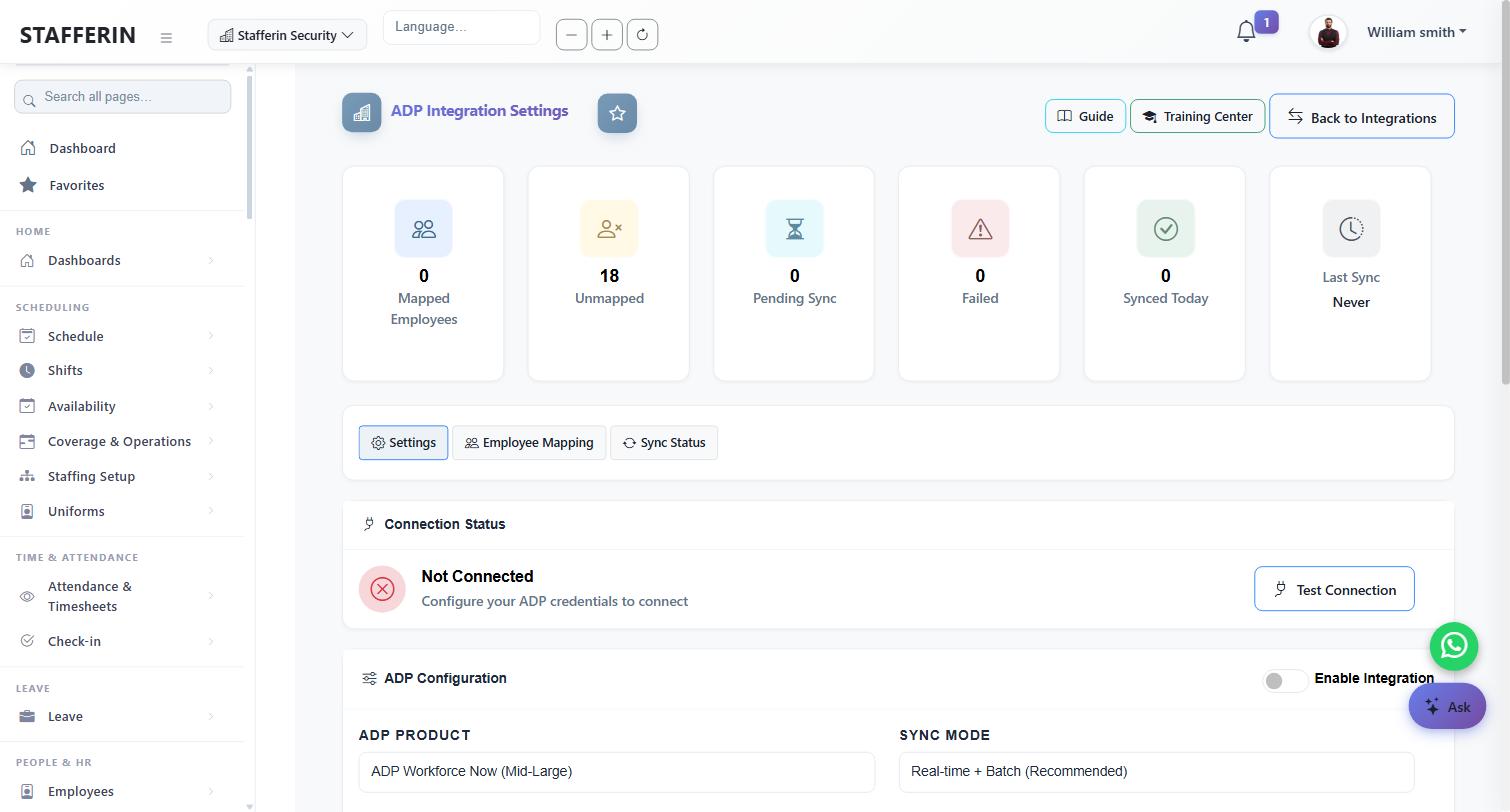
Mapped / Unmapped — how many of your active employees are linked to an ADP record. Unmapped counts every active employee without an ADP ID, so it starts equal to your headcount.
Pending / Failed / Synced Today — the state of the sync queue. Settings, Employee Mapping and Sync Status are steps 3–4, 6 and 7 of this guide.
Enter your API credentials
On the Settings tab, choose your ADP product and sync mode, then paste the Client ID and Client Secret from ADP. Click Save Settings at the bottom of the page.
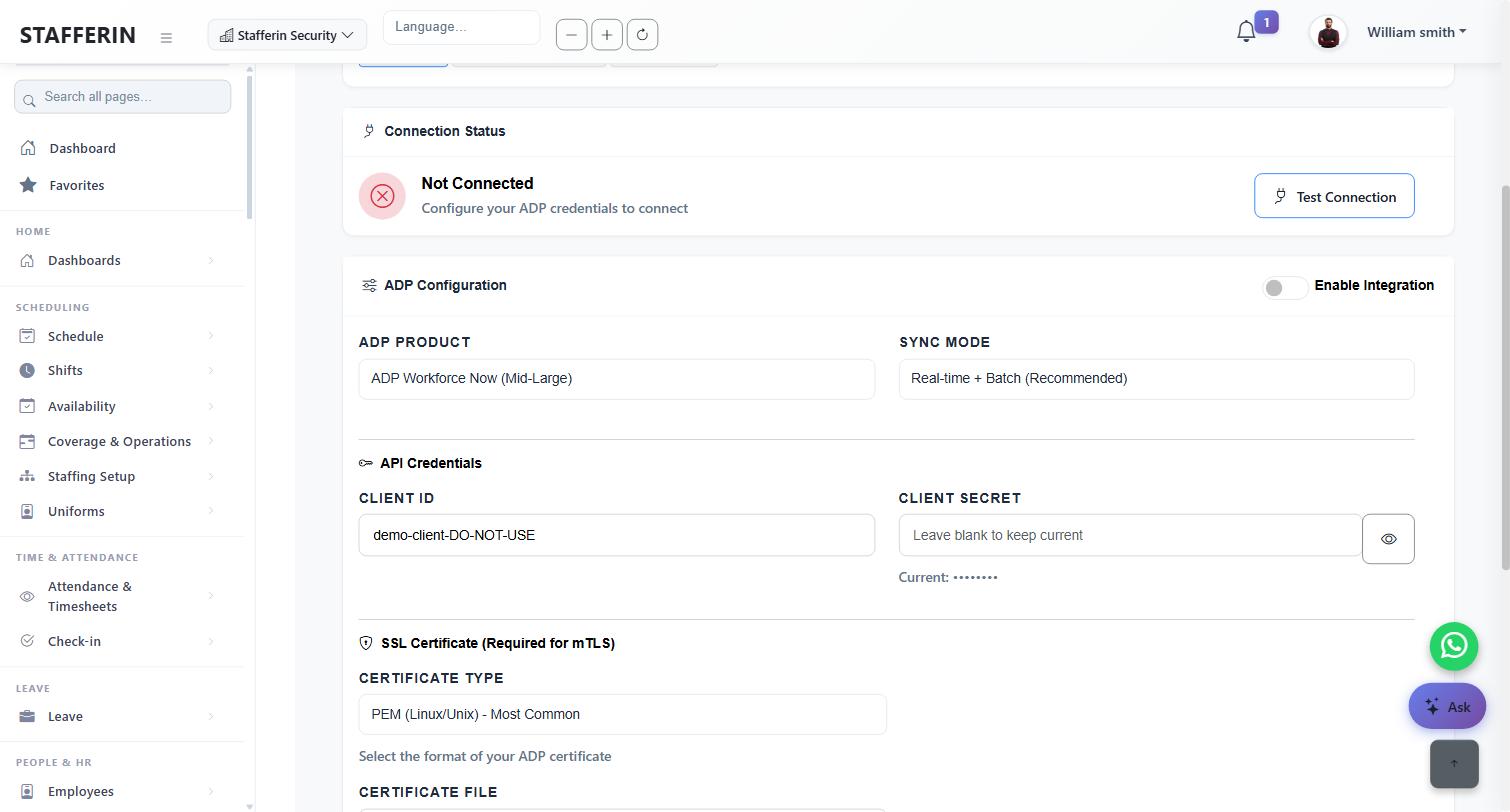
ADP Product — record which ADP product you are on. It is a label for your records; it does not change what Stafferin sends (why).
Sync Mode — leave it on Real-time + Batch (Recommended). It decides whether an approval is sent immediately or waits for the hourly run. The retry safety net applies either way — what each option really does is set out below.
Client Secret — once saved it is never shown again. The field reads "Leave blank to keep current" and the line beneath shows Current: •••••••• to confirm one is stored. Leave it blank whenever you edit anything else on this page.
Upload the ADP certificate
Scroll to SSL Certificate (Required for mTLS). Choose your format, attach the file(s), and click Upload Certificate. This is a separate button from Save Settings — the certificate has its own upload step because Stafferin validates and reads its expiry date.
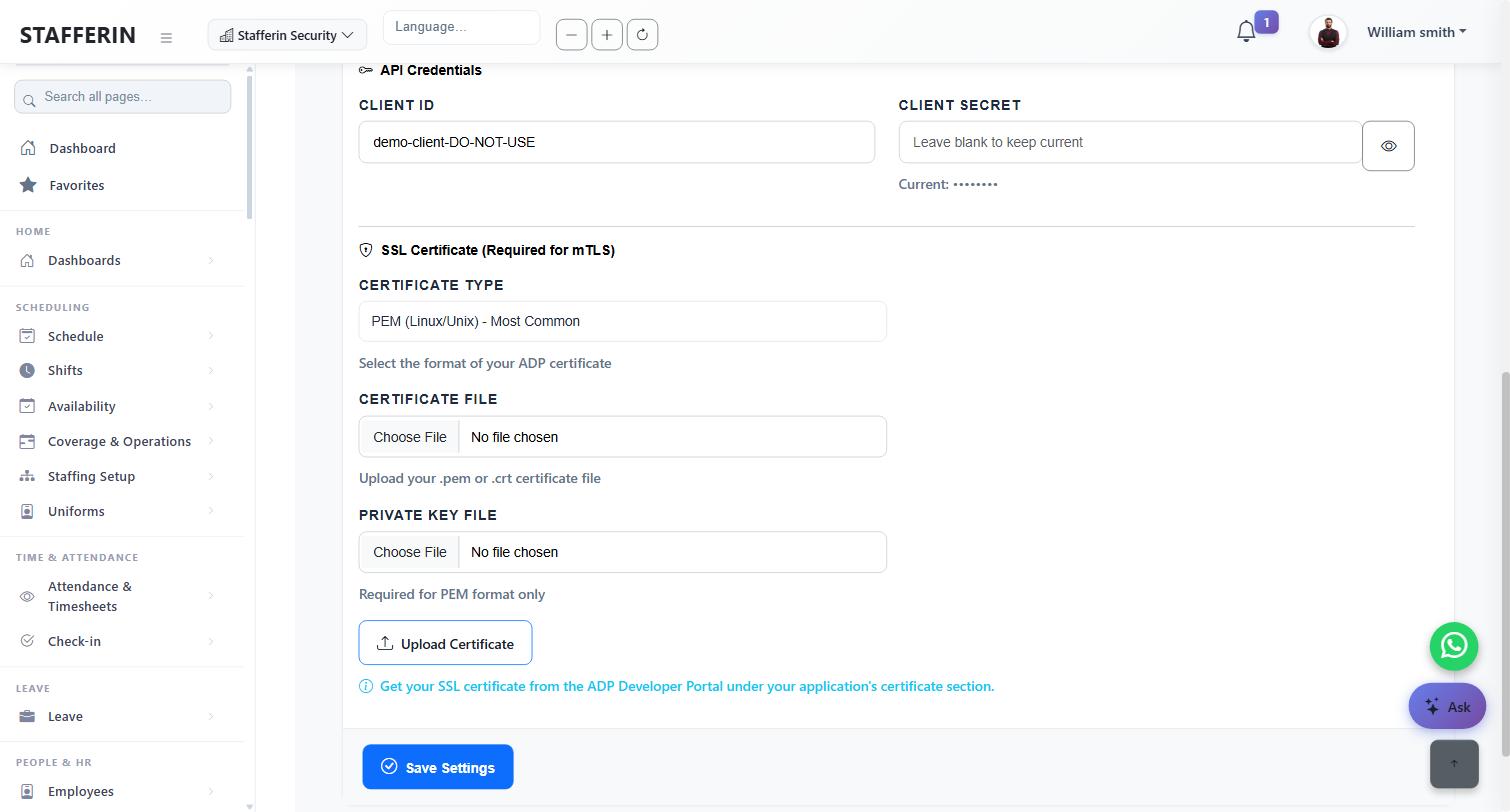
Which format do you have?
| Certificate type | What to attach |
|---|---|
| PEM (most common) | Both files: the certificate (.pem / .crt) and the private key. PEM will be rejected if the key is missing. |
| PFX / PKCS12 | The single .pfx or .p12 file, plus its password if it has one. |
| JKS | The .jks file. A password is required for this format. |
After a successful upload the panel shows the certificate's type and expiry date. If it expires within 30 days you'll see a warning — ADP certificates do expire, and when one does, syncing stops until you upload a new one.
Test the connection
Scroll back to Connection Status and click Test Connection. Stafferin asks ADP for an access token using your credentials and certificate, and tells you exactly what came back.
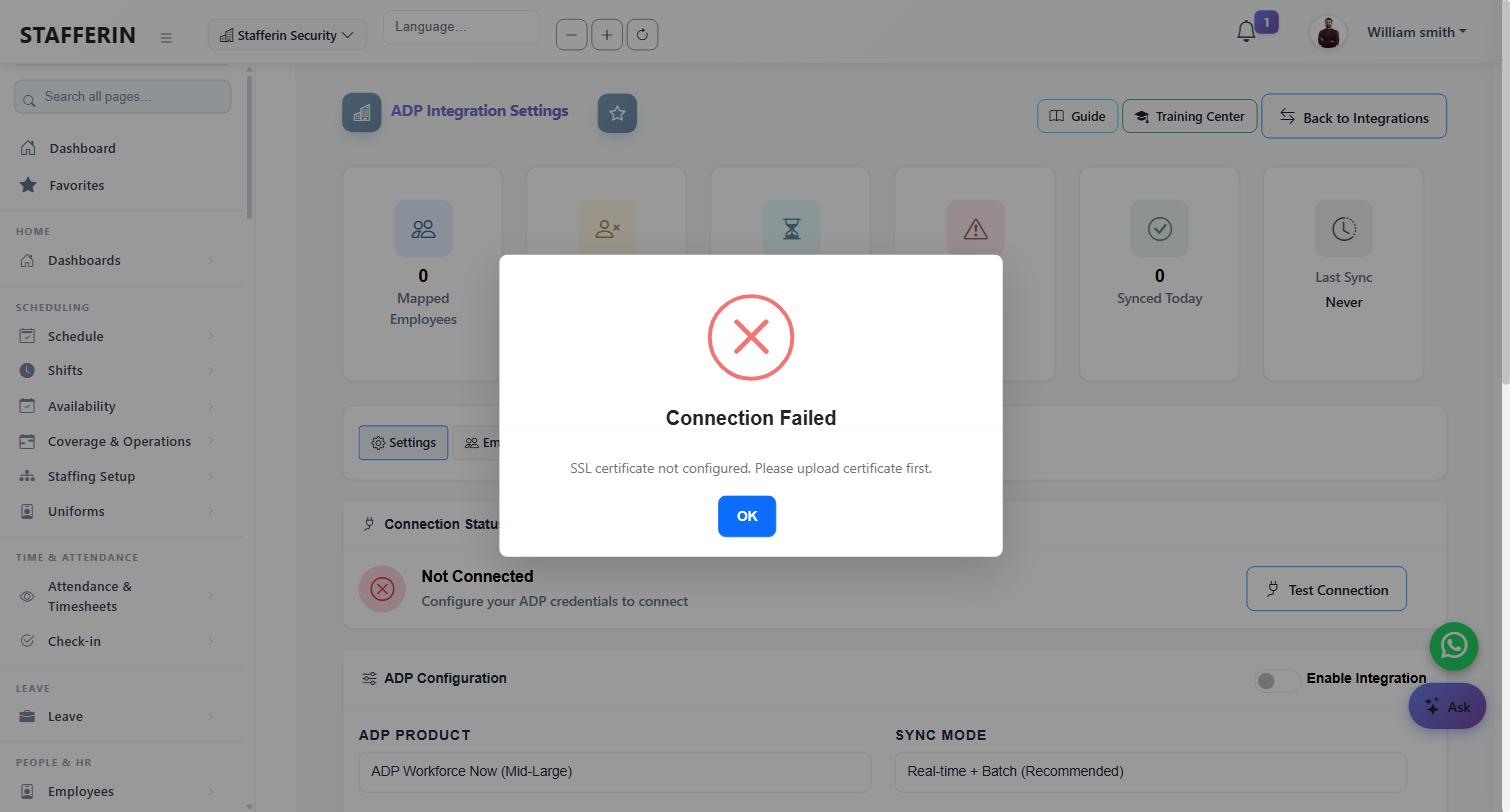
This is what you see if you try to test before uploading the certificate — the most common stumble, shown here deliberately. Go back to Step 4, upload it, and test again. On success the dialog reads Connection Successful and the badge above changes to Connected.
Map your employees to ADP
Open the Employee Mapping tab. Stafferin needs to know which ADP worker each of your employees is — that link is the ADP Associate OID. Nothing will sync for an employee who isn't mapped.
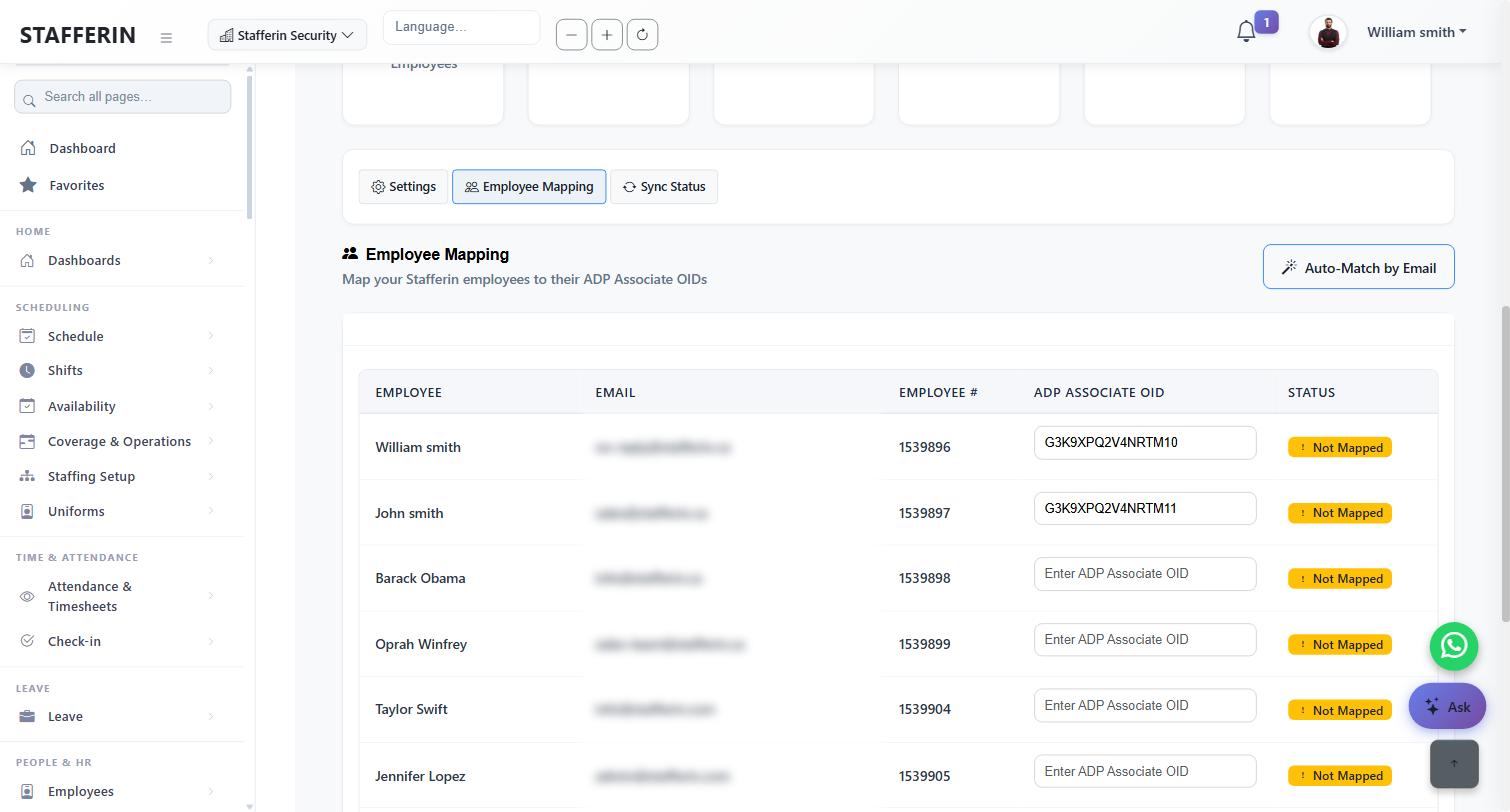
Email addresses are blurred in this screenshot only. Two ways to fill this in:
- Auto-Match by Email (top right) — Stafferin pulls your worker list from ADP and links anyone whose Stafferin email matches their ADP email. Start here; it does most of the work in one click.
- By hand — type the OID into the row and click Save Mappings. Use this for anyone auto-match couldn't place (usually a different work email in each system, or no email on file).
G3XXXXXXXXXXXXXX. Auto-match by email avoids having to look these up one at a time, so fix mismatched emails first and re-run it.Auto-match never overwrites an OID you already set by hand. Saving only sends the rows you actually changed, so editing one person doesn't rewrite your whole roster.
Turn it on and watch the first sync
Back on Settings, switch Enable Integration on and press Save Settings. From now on, approving attendance sends it to ADP. Approve one shift for a mapped employee, then open the Sync Status tab.
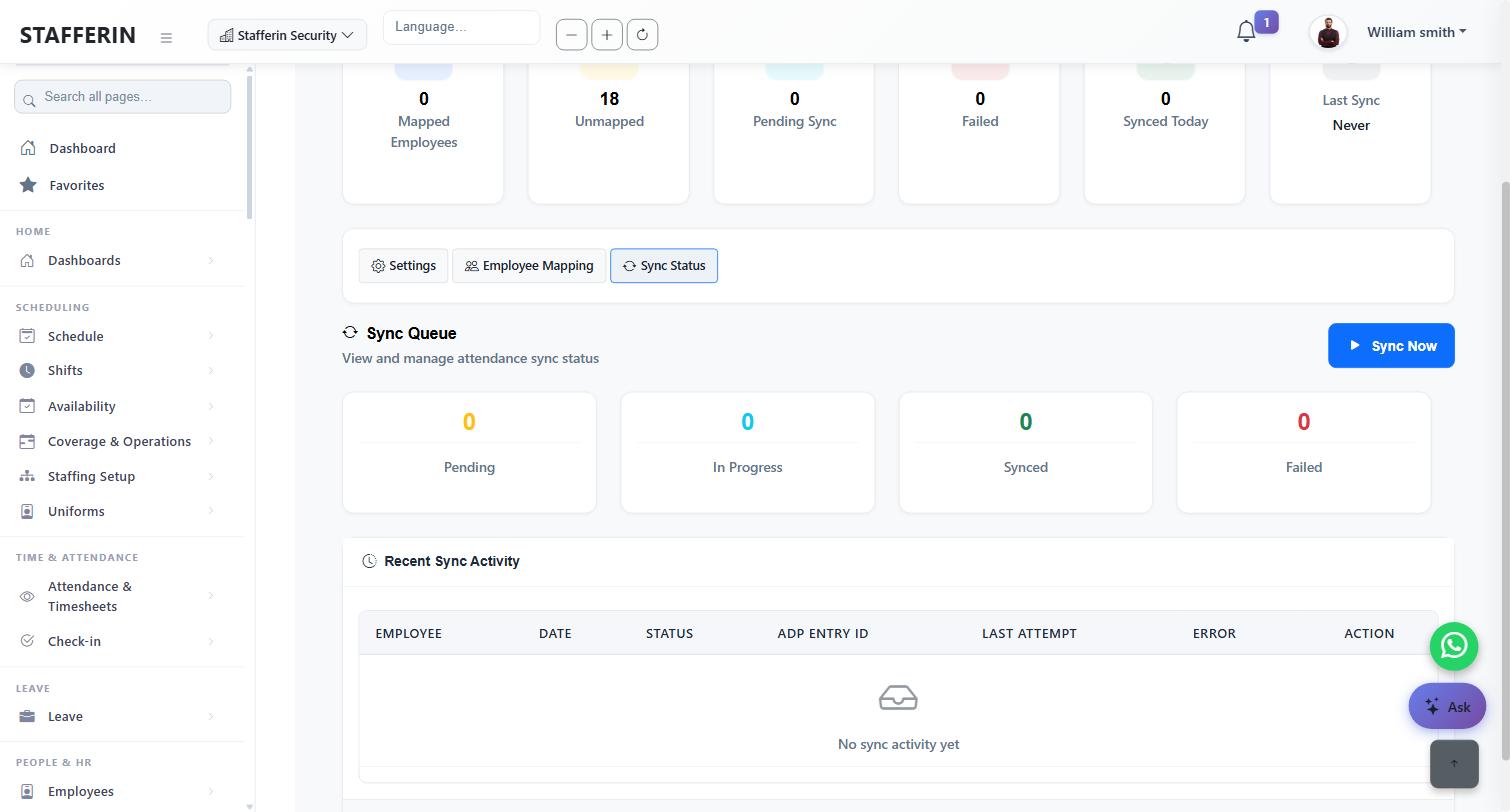
The row should move to Synced and show an ADP Entry ID — that ID is the time card in ADP. Now open ADP itself and confirm the hours and the date look right for that one employee before you rely on it for a full pay period.
How the sync behaves day to day
| What happens in Stafferin | What happens in ADP |
|---|---|
| A manager approves an attendance record | A time card is created for that employee and date, with the hours worked. |
| An approval is cancelled | The matching time card is removed. If ADP didn't return an ID when it was created, the row will say it must be removed in ADP by hand — check before payroll runs. |
| A shift has no clock-out | Nothing is sent. Stafferin will not push a one-punch shift. Fix the missing punch, re-approve, and it syncs with the correct hours. |
| The employee isn't mapped | Nothing is sent. They'll keep showing under Unmapped on the dashboard. |
| ADP is briefly unavailable | The row goes to Failed and the batch retry picks it up automatically — it runs every hour, so a short outage clears itself without anyone doing anything. Approvals in Stafferin are never blocked by an ADP problem. Use Sync Now if you don't want to wait. |
Troubleshooting
| What you see | What it means and what to do |
|---|---|
| “SSL certificate not configured. Please upload certificate first.” | You haven't completed Step 4. The certificate is required before any connection to ADP can be made. |
| “PEM format requires both certificate and private key” | You attached only one file. PEM needs the certificate and the key — attach both and upload again. |
| “Invalid certificate: the password does not match this file” | A PFX/JKS password problem, not a bad certificate. Re-enter the password ADP gave you for that file. |
| Badge still says Not Connected | Test Connection hasn't succeeded yet. The badge only turns green after a successful test — run Step 5 again and read the dialog message. |
| Auto-Match returns 0 matches | The emails don't line up between the two systems. Compare one employee's work email in Stafferin with the same person's email in ADP, correct it, and re-run. Anyone left over can be mapped by hand. |
| “Cannot process more than 500 mappings at once” | You changed more than 500 rows in one go — usually straight after auto-match on a large roster. Save in batches of 500 or fewer. |
| Everything says Unmapped and nothing syncs | Expected before Step 6. Map at least one employee, then approve one of their shifts. |
| Hours are right but the date looks off by a day | Check your organisation's time zone in Stafferin settings. Time cards are stamped in your organisation's local time. |
Every setting on this page, explained
These are the four controls in ADP Configuration. The dropdown labels are short; this is what they actually do.
Sync Mode
| Option | What happens when you approve | Failed rows retried? |
|---|---|---|
| Real-time | The time card is sent to ADP within seconds of the approval being saved. | Yes — hourly |
| Batch | Nothing is sent immediately. The row waits in the queue and goes on the next hourly run. | Yes — hourly |
| Real-time + Batch (default) | Sent within seconds, exactly like Real-time. | Yes — hourly |
ADP Product
Enable Integration
The master switch for your organisation. While it is off, approvals are queued but nothing is sent, and the hourly job skips you entirely. Turning it on is step 7. Turning it off is the safe way to pause syncing without deleting your credentials.
API Credentials
Client ID and Client Secret from ADP. The secret is stored encrypted and never shown again — the field reads “Leave blank to keep current”, and Current: •••••••• below it only tells you one is on file. Changing either credential clears the stored access token, so the next sync re-authenticates.
Exactly what Stafferin sends to ADP
One time card per approved attendance record. Nothing else — no rates, no pay, no employee master data.
| Field | Value |
|---|---|
| Time card ID | STAFF-<record id> — how Stafferin recognises the card later if the approval is cancelled. |
| Employee | The ADP Associate OID from your Employee Mapping. Unmapped employee = nothing sent. |
| Period | Start date from the shift; end date follows the clock-out, so an overnight shift correctly spans two calendar days. |
| Punches | An IN and an OUT punch, timestamped in your organisation's time zone with its UTC offset. |
| Total hours | Clock-out minus clock-in, rounded to two decimals. |
Decide up front how you want this handled: either have guards clock out and back in around unpaid breaks, or apply the deduction in ADP. Check this against one real shift before you run a full pay period.
Sync statuses, retries and limits
| Status | Meaning | What to do |
|---|---|---|
| Pending | Queued, not yet sent. | Nothing — it goes on the next run, or immediately in real-time mode. |
| In Progress | Being sent right now. | Nothing. |
| Synced | ADP accepted it. The row carries the ADP entry id. | Done. This is the state you want. |
| Failed | ADP refused it or was unreachable. | It retries by itself — see below. Read the error on the row. |
| Cancelled | The approval was reversed, so the card was withdrawn. | Check ADP if the row says it must be removed by hand. |
| Rule | Value |
|---|---|
| Automatic retries per record | 3, then it stops and stays Failed for you to look at. |
| Minimum gap between attempts | 30 minutes |
| How often the retry job runs | Hourly |
| Test Connection | 5 per minute |
| Sync Now | 3 per 5 minutes |
| Save Settings | 10 per minute |
If ADP keeps failing, Stafferin stops hammering it and backs off automatically, then resumes when ADP recovers. A row that has used all 3 retries will not move again on its own — fix the cause, then use Retry on the row or Sync Now.
What this integration does not do
- It does not create employees. Adding someone in ADP will not add them to Stafferin. Create the person in Stafferin, then map them in Step 6.
- It sends approved attendance only. Scheduled-but-unapproved shifts are never pushed — approval is the trigger.
- It does not send pay rates or run payroll. Stafferin supplies hours; rates, taxes and payroll runs stay entirely in ADP.
- Employee import, batch export and webhooks have no screens yet. They exist in the API but there is nothing to click — ask support if you need them.